

The Essential Guide to Safe Indoor Play – Tips and Tricks for Parents

Safe indoor play is vital for your child’s development, offering a secure environment to explore, learn, and grow. Within the walls of your home, children can develop crucial skills such as problem-solving, social interactions, and physical coordination.
These activities are enjoyable and instrumental in nurturing young minds and bodies. By providing a safe space for play, you’re ensuring that your child’s first steps into the world are joyful and secure.
There are plenty of activities that can be conducted indoors, from simple puzzles and games to more physical undertakings like play tunnels or soft obstacle courses. Each type of play aids different aspects of your child’s development, which can offer a balanced mix. By carefully selecting activities, you create an environment that supports comprehensive growth while prioritising safety and fun.
Assessing Your Home for Safety, Room-by-Room
When creating a safe play area for your child, start with a detailed assessment of each room in your home. Check for hazards like sharp corners, loose electrical cords, and unsecured furniture that could tip over. Consider the height and placement of objects your child might try to climb on, ensuring nothing dangerous is within reach. This room-by-room safety check isn’t just about removing hazards but creating a secure space that promotes your child’s independence while protecting them.
For example, soft corner protectors can be applied to furniture in the living room. Secure gates can help manage access to other parts of the house. Kitchens require special attention; ensure all cleaning products are out of reach, and never leave heavy pots or pans on front stove burners where little hands might pull them down. By taking these steps, you ensure each room supports safe exploration.
The Best Materials for Child-Safe Indoor Play Areas
Choosing suitable materials for indoor play areas is critical for safety and durability. Opt for non-toxic, child-safe plastics and woods that withstand rough play without breaking or splintering. Carpets and mats used in play areas should be firm enough to prevent trips and falls. Yet, they should be soft enough to cushion accidental tumbles. Look for products that are easy to clean and maintain, which helps keep the play area hygienic and safe over time.
Consider the longevity and adaptability of the materials you choose. Select modular furniture and storage options that can grow with your child, transforming from simple toy storage to more sophisticated organisational systems as they age. This makes your investment more cost-effective and maintains a consistent safety standard throughout your child’s development stages.
Physical Indoor Games to Keep Kids Active
Keeping your child active indoors requires creative thinking, especially when outdoor play isn’t possible. Simple games like tag or follow-the-leader can be safely adapted for indoor play, provided there’s enough space cleared of any trip hazards. Another fun option is setting up an obstacle course using soft, safe objects like cushions or foam blocks, encouraging physical activity and problem-solving skills.
If you’re considering more structured physical activities, TTS’s range of indoor climbing frames can be an excellent addition to your indoor play environment. These structures are designed to be safe and durable, perfect for encouraging climbing and exploring in a controlled, secure setting. Integrating such equipment into your indoor play area provides your child with exciting new ways to develop their motor skills and confidence in their physical abilities.
Balancing Safety and Fun Indoors
Introducing indoor play equipment can transform your home into a thrilling playground for your children, but one should never forget to strike the right balance between safety and fun. When selecting play items such as slides, ball pits, or small climbing walls, explore the space available and the equipment’s safety features. Ensure all play equipment has soft edges, non-toxic materials, and stable bases to prevent tipping. Conduct regular checks for loose parts or signs of wear to maintain a safe play environment.
Positioning this equipment in a room with ample space is important to avoid injuries. Set up play areas on surfaces that cushion impacts, like thick rugs or interlocking foam mats. This arrangement provides a safe landing for occasional slips and falls and defines a specific play area that helps keep the rest of your home orderly. By carefully planning where and how play equipment is installed, you can provide your children with countless hours of safe, enjoyable indoor play.
Educational Indoor Activities for Learning Through Play
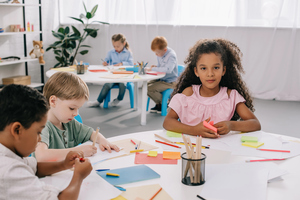
Integrating educational content into playtime is a fantastic way to engage your child’s curiosity and support their learning. Simple activities like sorting games, where children arrange objects by size, colour, or type, help develop cognitive skills. These can be set up with everyday items. Another effective educational activity is puzzle-solving, which boosts problem-solving skills and enhances fine motor skills and patience.
Interactive story sessions where you read and discuss the story with your child encourage language development and comprehension. Story sessions can be more engaging by incorporating role-play elements, where you and your child act out parts of the story. Encouraging participation reinforces memory retention and makes learning fun and immersive. It lays a solid foundation for academic skills at an early age.
Creative Indoor Play Ideas That Boost Cognitive Skills
Creative play is fundamental for your child’s mental growth and can be facilitated with simple household items. For example, building forts from blankets and pillows teaches planning and problem-solving skills while encouraging creativity. Crafting sessions using recyclable materials like cardboard boxes or old newspapers are environmentally friendly, stimulate creativity, and introduce basic sustainability concepts.
In addition to these crafts, consider introducing music and dance as part of your child’s play routine. These activities are not only enjoyable but also enhance auditory and rhythm skills. Instruments like simple drums or homemade maracas made from beans in containers allow children to explore sound and rhythm, nurturing both a love of music and coordination skills.
Setting Up Play Routines to Manage Energy Levels
Establishing a play routine helps manage your child’s energy throughout the day, ensuring they stay active and engaged without becoming overtired. Morning times can be ideal for more physically demanding activities, as children are generally more energetic after a good night’s sleep. Incorporate activities like dance, yoga, or simple exercises. Activities that can be done indoors at home provide a healthy outlet for their morning energy.
As the day progresses, transitioning to quieter, more focused activities like drawing, reading, or puzzle-solving can help reduce their energy levels in preparation for nap or bedtime. This helps maintain a balanced daily routine and instils a sense of time management and organisation in your child’s daily life. It makes for a healthy balance between active play and quiet time.
Creating a safe and engaging indoor play environment for your children supports their physical development and empowers their cognitive growth and creativity. By carefully assessing your home for safety, choosing the right materials, and integrating suitable play equipment, you ensure your children have a secure space to explore and learn. These efforts help nurture a well-rounded development, making playtime educational and enjoyable.
As your children grow, continue adapting their play areas to meet their changing needs and abilities. Regularly update safety measures and introduce new activities that challenge their skills while maintaining a secure environment. This ongoing commitment to their play and safety will provide them invaluable support as they grow, ensuring their indoor adventures are always fruitful and fun.


 Katie Brenneman is a passionate writer specializing in education, mental health, family lifestyle and online safety. When she isn’t writing, you can find her with her nose buried in a book or hiking with her dog, Charlie. You can follow her on




 Explore the Safe Search Engine -