Safe Ways for Kids to Create Together Online (Even With Grandparents Far Away)

When a child wants to spend time with a cousin three states away or a grandparent across the ocean, the easiest options on a tablet are rarely the best ones. Short-video apps keep them scrolling alone. Popular multiplayer games often come with open chat, friend requests and lobbies full of people nobody in the family knows.
There is a calmer middle ground: small, invite-only activities where kids make something with people they already love. A shared picture, a story read aloud, a drawing that two households add to. The trick is knowing which ones are actually set up for a family, and which ones only look that way.
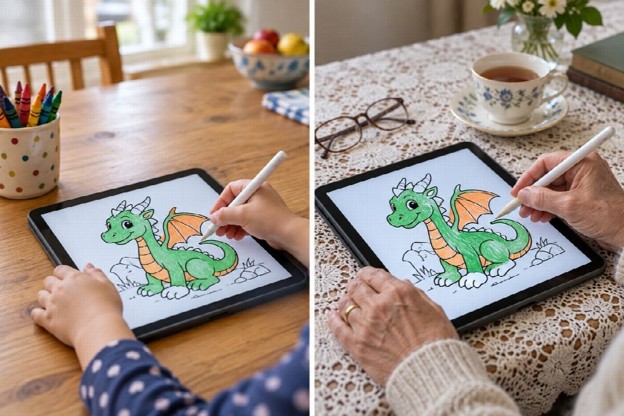
Two homes, one page: shared creative time can work across any distance.
A six-point check before you say yes
Run any new activity past these questions first. If it fails one, that does not always mean no, but it does mean you sit in.
- No child account and no personal details. A parent should be able to set it up. Your child should not need an email address, a birthday or a profile photo.
- No public chat and no strangers. Skip anything with open lobbies, random matchmaking or friend requests from people outside the family.
- Invite-only entry. Only people who receive a private link or code from you should be able to get in.
- Nothing to install. A browser tab on a device you already manage is easier to supervise than a new app with its own settings and notifications.
- A natural end point. A time limit, a finished picture or the last page of a book. Endless feeds are designed to keep going.
- You can see the screen. Shared spaces like the kitchen table work better than bedrooms with the door closed.
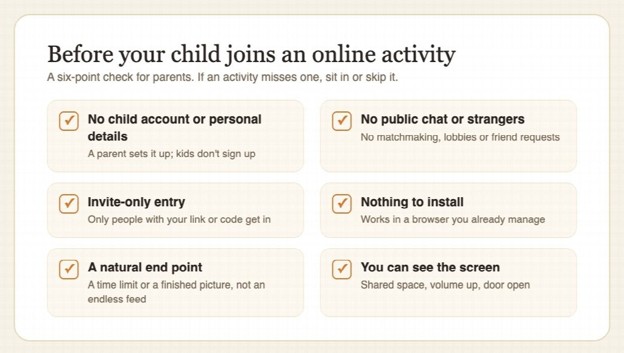
Save or print this checklist for the next time a new app or game comes up.
Activities that pass the check
1. Color the same picture at the same time
Coloring works well across generations because nobody has to be good at it. Grandpa can take the sky while a five-year-old does the dragon. MyColoring’s free tool lets you color together: a parent picks a coloring page, opens a room and sends the link, a QR code or a 6-digit room number to a relative. Everyone in the room sees each stroke appear as it happens, on a phone, tablet or computer.
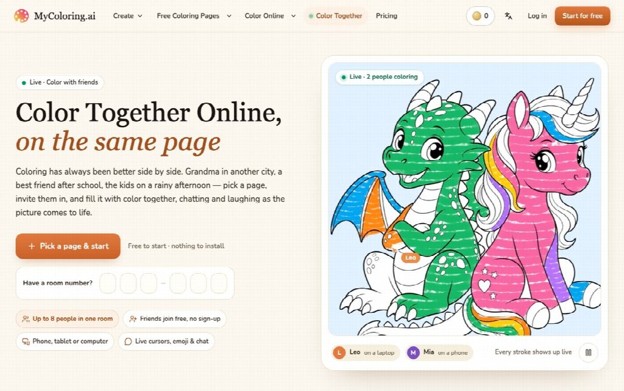
The Color Together page on MyColoring. The person who opens the room needs a free account; invited guests do not.
How it lines up with the checklist, based on the tool’s own FAQ and help text:
- The person who starts the room needs a free account, so that should be the parent. People you invite join from the link or room number with no account and no app, and guests are given a random nickname instead of being asked for a name.
- There is no public matchmaking. But anyone who has the link or number can join, so treat it like a house key and share it only with people you know.
- A free room holds 2 people, including the host, for 30 minutes, and you can open 2 free rooms a day. A paid membership raises that to 8 people with no time limit, which can suit a bigger family call.
- Rooms include a text chat, and the site states plainly that chat messages are not filtered. The host can turn chat off, lock the room once everyone is in, remove someone, and end the room for everyone.
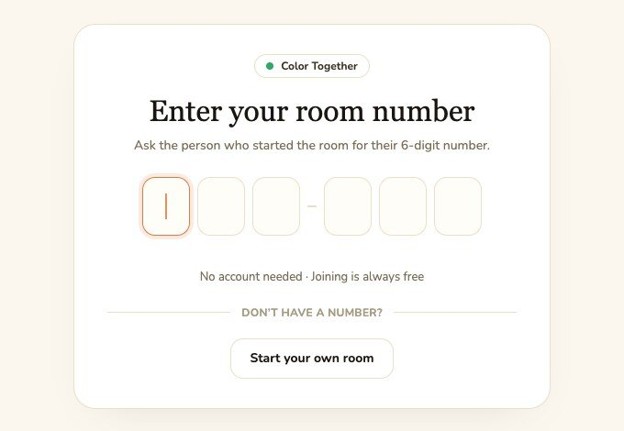
What an invited grandparent sees: a box for the room number. Reading six digits over the phone is often easier than forwarding a link.
For younger kids, a simple setup is to put the coloring room on the tablet and run a normal video call on a phone beside it, so everyone can talk while they color. The page does not have to come from the library, either. Your child can describe a picture, say the family dog flying a rocket, and turn it into a page with an AI coloring page generator, then choose it under “Use your own page” when you open the room. When the picture is done, anyone in the room can download or print it, which makes a nice thing to stick on two fridges.
2. Read a picture book together on a video call
This one needs no special tool at all. Use whatever video app your family already trusts, whether that is FaceTime, Google Meet, WhatsApp or Zoom, and let a parent place the call from their own contacts list.
The best version is when both households have a copy of the same book. Grandma reads and holds the pictures up to the camera; your child turns the pages on their own copy and points at the details. Keep it short, one or two books, and let the child pick next week’s.
For the youngest kids, the American Academy of Pediatrics’ tips for video chatting with infants and toddlers describe a similar routine: a regular time, a shared activity such as a book, and a parent nearby to point things out. The AAP calls these calls “relationship time,” not screen time.
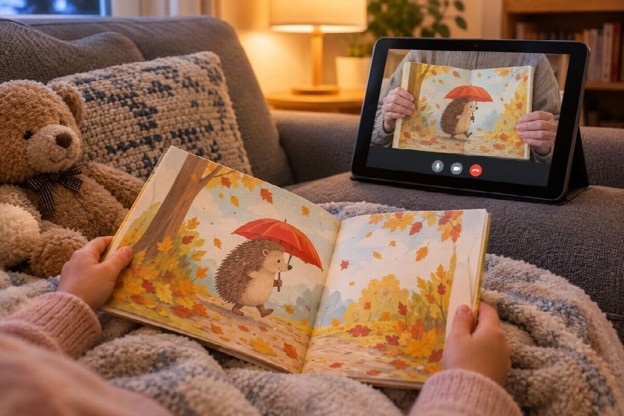
Matching copies of the same book turn a video call into story time.
3. Draw on a shared online whiteboard
Free whiteboard tools let two people draw on the same blank canvas from different homes. Some, such as Excalidraw, let you start a live session and share a link without creating an account. Others, like Microsoft Whiteboard, tie the board to a Microsoft account, which works if a parent owns the account and does the inviting.
Good prompts for kids: draw a monster together where each person adds one body part, design a dream treehouse, or play a simple guessing game where one person draws and the other guesses. As with coloring rooms, anyone holding the link can usually edit, so do not reuse the same board for months, and close or delete it when you are finished.
4. Play the same board game at both houses
Some classic games work over a video call with no online version at all. Guess Who? and Battleship are natural fits, because each player already keeps their own board hidden. Bingo works too: print matching cards for both homes and let a grandparent call the numbers.
No links, no accounts and no chat beyond the video call you are already on. It is a good fallback when a grandparent is tired of new tools.
House rules that keep shared activities safe
Whatever you choose, a few simple rules cover most of the risk. If your family keeps written screen rules, these fit easily into a family media plan.
-
- A parent sends every link. Kids can ask for a session, but the invitation goes from a parent to a specific relative through a private message or a phone call.
- Never post room links in public. That includes social media, class group chats, comment sections and shared family pages that friends of friends can see. A room number in public is an open door.
- Lock it once everyone has arrived. If a tool offers a lock or a waiting room, use it as soon as the expected people are in.
- Turn chat off if you do not need it. If everyone is already talking on a video call, text chat adds nothing and is one less thing to watch.
- Close the room when you are done. End the session, sign out of the whiteboard, and start a fresh room next time instead of reusing an old link.
- Agree on what to do if something feels off. If an unexpected name appears, your child stops and gets you. No one gets in trouble for asking. If anyone ever asks your child for photos or sends something sexual, report it to the CyberTipline run by the National Center for Missing & Exploited Children.
The goal is not more screen time. It is better screen time: a fixed half hour where your child makes something with a person they love, with you close enough to hear the laughing. Pick one activity this week and let your child choose the page or the book.