How Parents and Teachers Can Make Safe Learning Posters With AI Images
Parents and teachers are always making things. A chart of the days of the week for the fridge, a poster of the water cycle for a classroom wall, a reward chart, a labelled diagram of a plant, a party sign, a worksheet header. Most of us make these with a mix of clip art, free templates and a lot of patience, and the result often looks a bit tired.
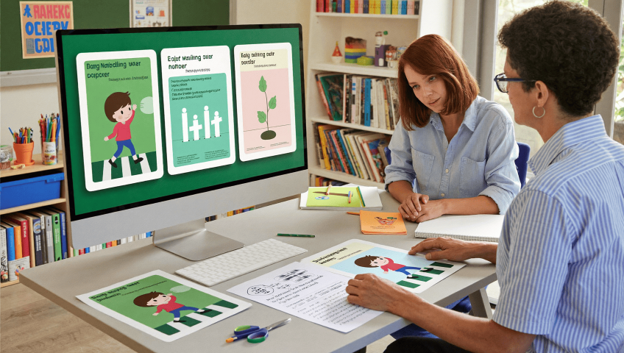
A new kind of image model is changing what a busy adult can make. GPT Image 2 is an image model available on Higgsfield, and one of its stand out strengths is putting readable text into images, which is exactly what posters and charts need. Higgsfield AI is a native AI creative suite, which offers advanced AI image, video, and voice generation, editing, and upscaling tools. This guide shows how adults can use it to make clear learning visuals, and how to do it safely, which matters on a site that is all about keeping children safe online.
Why Do Learning Visuals Matter?
Children learn through pictures, colour and repetition. A well made poster can turn a hard idea into something they notice every day. A labelled diagram helps a child connect a word to an object. A simple routine chart gives a young child a sense of what comes next.
The problem is that good visuals take time and design skill. Pictures without clear words are not enough, and words without good pictures are easy to ignore. Many free templates look the same, and finding images that suit your exact topic can be slow.
There is also a safety dimension. Searching for images can lead children, and tired adults, to results that are not suitable. This site’s guide to safe image search explains why using a child friendly search matters. Creating your own images is another way to control exactly what ends up on the wall.
What Is GPT Image 2 on Higgsfield?
According to the live product page, GPT Image 2 on Higgsfield offers the following features that matter for learning materials.
Text in images. The page highlights rendering text inside images, including different writing systems. Higgsfield describes it as a vendor claim of high text accuracy, so treat it as a strength to test rather than a guarantee, and always proofread what appears.
Native 4K. The model supports 4K output, which helps when you want a poster to look sharp when printed or shown on a classroom screen.
Asset locking. You can keep elements fixed from one image to the next, which helps with consistent characters and styles across a set of materials.
Reference image. You can supply a reference to guide the look of the result.
Plain language edits. You can change an image by describing the edit, such as “make the title bigger” or “change the background to light blue”.
Frames for other tools. The page lists ways to carry an image into other Higgsfield tools, including video, so a favourite poster could become a short animated explainer.
Pricing is not stated on the page, so check Higgsfield’s site for current plans before you plan a big project.
Is This Safe for Children to Use?
This is the most important question, so it comes early.
Adults should operate the tool. The workflow in this guide is for parents and teachers. Check Higgsfield’s current terms and age requirements before anyone uses it, and keep children away from open ended image generation unless an adult supervises every step.
Never upload photos of children. Do not put children’s faces, names or school details into any image tool. Use generic characters, animals, objects and scenes instead.
Do not use face references of real people. Keep to illustrated or generic characters.
Review everything. Generated images can contain odd details. An adult must check every image before it is shown to a child.
Keep prompts clean. Describe objects, scenes and styles. Avoid personal details, addresses and anything identifying.
Know the rules where you work. Schools often have policies on AI tools and student data. Check with your school or district before using generated materials in a classroom.
What Can You Make?
A few ideas that fit the strengths of a text friendly image model.
Routine charts. Morning, after school and bedtime steps with simple pictures and labels.
Classroom posters. The water cycle, the life cycle of a butterfly, parts of a plant, the planets, types of clouds.
Alphabet and number charts. Bright, consistent letters or numbers with matching objects.
Reward and behaviour charts. Clear grids with a theme your child likes.
Safety posters. Road crossing steps, kitchen rules, how to ask a trusted adult for help. These pair well with the online safety lessons many schools teach.
Worksheet headers and covers. A friendly title banner for a pack of printables.
Party signs and invitations. Welcome signs, name tags and menus. Remember to ask guests about allergies before you print anything about food.
How Do You Write Prompts That Work for Posters?
Clear prompts produce clearer posters. Use a simple formula: what it is, what it shows, what the words say, the style and the colours.
For example: “A bright classroom poster titled The Water Cycle, with a simple illustration of the sun, a cloud, rain and a river, labelled Evaporation, Condensation and Precipitation, friendly flat cartoon style, soft blue and green colours, plenty of white space.”
Practical tips:
- Put the exact words in quotes. Spell out every label the way you want it.
- Keep text short. A title and a few labels work better than long sentences.
- Ask for clean layouts. Plenty of white space makes posters easier to read.
- Choose one style. Flat cartoon, simple line drawing or watercolour. Use the same wording across a set.
- Specify colours. Soft, high contrast colours help readability.
- Generate a few versions. Pick the clearest.
How Do You Check Text and Facts?
A poster is only useful if it is correct. Generated text can still contain mistakes, so proofread every word.
Spelling. Read each label aloud and compare it to your list.
Accuracy. Check that diagrams match real science and geography. If a planet order or a body part is wrong, fix it or discard the image.
Reading level. Make sure the words match the age of the child.
Cultural sensitivity. Check that pictures are respectful and inclusive.
Print test. Look at a printed copy from a few steps away. If you cannot read it from across the room, the text is too small.
If an image has one small error, use plain language edits to correct that part instead of starting over. When a fact matters, such as a safety rule, double check it against a trusted source before the poster goes on the wall.
How Do You Keep a Set of Materials Consistent?
A set of posters looks professional and feels calmer for children when the style is the same.
Reuse your style phrase. Copy the same wording for colours and drawing style into each prompt.
Use asset locking. Keep a recurring character or mascot the same across charts.
Use a reference image. Supply your first poster as a reference for the next one.
Standardise sizes. Pick one page size for printables and one for wall posters.
Make a template. Save a layout you like, then change only the title and labels.
How Do You Print and Display Materials?
With native 4K output, you have plenty of resolution for printing. A few tips help.
Test print one page. Check colours and readability before you print a set.
Use matte paper. It reduces glare for wall displays.
Laminate for durability. Charts that children touch every day last longer when laminated.
Place at child height. Put posters where children can see and point to them.
Rotate. Change displays every few weeks so they stay interesting.
How Can Higgsfield Fit Into a Weekly Routine?
Busy adults need a routine that does not add stress.
- Pick one need for the week. A chart, a poster or a printable.
- Write the words first. List every label and heading.
- Open Higgsfield and generate. Try three versions of the layout.
- Proofread. Check spelling and facts.
- Edit. Use plain language edits to fix small issues.
- Print and display. Test one copy first.
- Collect feedback. Ask children what they notice and what confuses them.
Aim for one small project at a time. A single clear poster beats a dozen rushed ones.
What Mistakes Should You Avoid?
Trusting the text without checking. Always proofread.
Making posters too busy. Simple pictures and a few words work best.
Using real children’s images. Keep to generic characters.
Skipping the school policy check. Know your rules.
Ignoring accessibility. Use high contrast, large type and clear fonts, and think about children with reading differences.
Using images that look too real. Avoid realistic people for young learners where cartoons will do.
Forgetting copyright. Do not recreate characters from films, games or books, and do not copy another publisher’s artwork.
What Are the Limits to Keep in Mind?
An image model is not a teacher, and it does not replace the care that goes into good materials. It can make small visual mistakes, and results vary from one attempt to the next. Diagrams that must be exact, such as anatomy, maps and science processes, need extra checking against trusted sources.
The product page does not state pricing, usage limits or age requirements for users, so confirm these with Higgsfield before you rely on it for a school project. Treat generated images as one resource among many, alongside real photos, books and hands on activities.
Is GPT Image 2 Worth Trying for Learning Materials?
If you regularly make charts, posters and printables and want a cleaner, more consistent look, it is worth a small trial. Choose one simple project, such as a morning routine chart. Write the labels, generate a few versions in Higgsfield, proofread, print one copy and see how it works at home or in class. If it saves time and the result is clear, build a small library. If it does not, you have lost very little.
Frequently Asked Questions
Can children use image generators? Check the tool’s current terms and age rules first. The approach in this guide is for adults to operate the tool, with no children’s photos or personal details used.
Can GPT Image 2 put readable text in a poster? The product page highlights text rendering as a strength. Always proofread, because mistakes can still happen.
What resolution does it support? The Higgsfield page lists native 4K.
Can I change a part of an image without starting again? Yes. The page lists plain language edits.
Can I keep the same character across posters? The page lists asset locking and reference images, which help with consistency.
Should I check the facts on a generated diagram? Yes, every time. Compare it with a trusted source before you display it.