How Students Can Avoid Data Loss and Recover Files for Free When It Happens

Nothing ruins a semester like a laptop that dies the night before something’s due. A research paper, group project files, a thesis draft you’ve been chipping away at for months — losing that isn’t something you can just redo before morning.
Most of it never had to happen. A few habits keep data loss from being a possibility in the first place. And if the files are already gone, there’s a decent chance you can still get them back, no expensive software or repair shop needed. That’s what this guide walks through: what to do before a crash, and what to do after one.
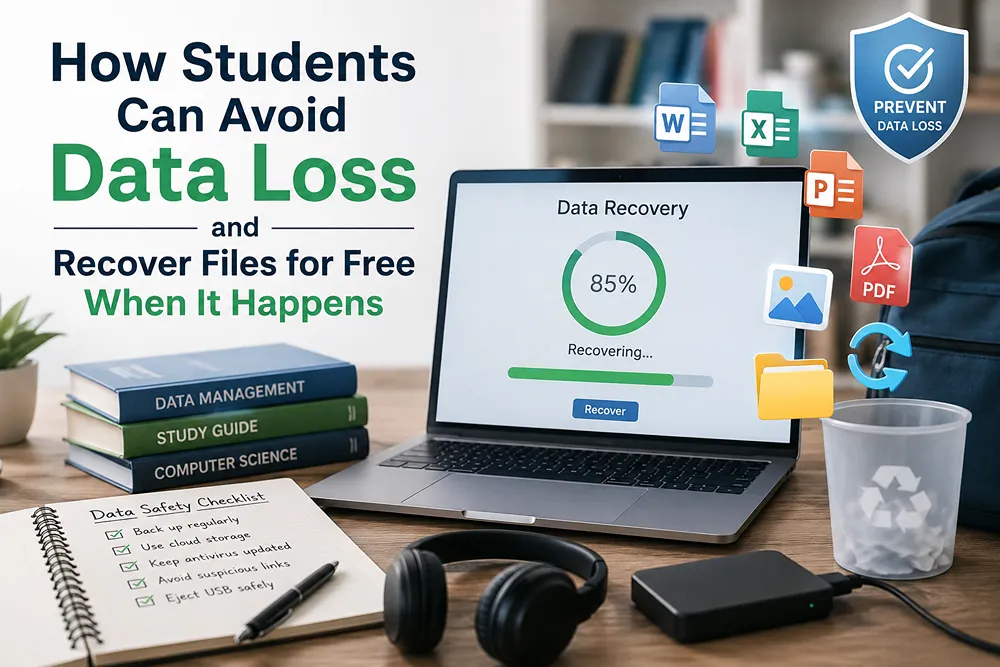
Why Students Are Especially Vulnerable to Data Loss
Students face a unique combination of risk factors that make data loss more likely than it is for the average computer user:
- Old or shared hardware. Hostel and library computers, hand-me-down laptops, and budget SSDs are more prone to failure.
- Constant multitasking. Switching between assignments, downloads, and browser tabs increases the chance of accidental deletion or file corruption.
- Deadline pressure. Late-night, rushed saves are a leading cause of corrupted or incomplete files.
- Limited backup habits. Most students don’t have a structured backup routine — one lost laptop can mean a lost semester.
- USB and pen drive reliance. Cheap flash drives are a common (and common-failing) way students move files between library computers, labs, and their own devices.
Understanding these risks is the first step toward avoiding them.
7 Simple Habits That Prevent Data Loss
You don’t need to be a tech expert to protect your work — just consistent.
- Follow the 3-2-1 backup rule. Three copies of important files, on two different types of storage, with one kept elsewhere. For students: laptop, external drive, and Google Drive or OneDrive covers it.
- Turn on autosave and version history. Google Docs, Word, and most apps have this built in. It’s the difference between losing a paragraph and losing an entire assignment.
- Use cloud storage for anything you can’t afford to lose. The free tiers of Google Drive, OneDrive, or Dropbox are plenty for assignments, notes, and research files.
- Eject USB drives properly. Pulling a pen drive mid-transfer is one of the most common causes of corrupted files among students. Use “Safely Remove Hardware” every time.
- Don’t rely on shared or public computers for your only copy. Library and lab machines often get wiped automatically — treat them as temporary, not storage.
- Keep your laptop’s software updated. Outdated systems and drivers crash more often, and crashes mid-save are how files get corrupted.
- Don’t ignore warning signs. Slow boots, clicking noises, or “disk error” messages mean back up now, not later.
What to Do the Moment You Realize Data Is Lost
If you’ve deleted a file, formatted a drive, or just had a crash, stop using that drive or folder right away. Every new file you save risks overwriting the space where your lost data still sits. Pause first, then move to recovery.
This is where free data recovery software becomes genuinely useful for students who can’t afford paid data recovery services.
Recovering Lost Files for Free with Stellar Data Recovery Free
Stellar Data Recovery Free is a good starting point for students because it’s built for exactly this kind of situation — accidentally deleted assignments, formatted pen drives, or files lost after a crash — without any upfront cost.
What it can help recover:
- Accidentally deleted documents, PDFs, and presentations
- Files lost after formatting a USB drive or memory card
- Photos and videos lost from cameras or phone storage
- Data lost due to a corrupted or unreadable partition
How to use it, step by step:
- Download and install Stellar Data Recovery Free on computer.
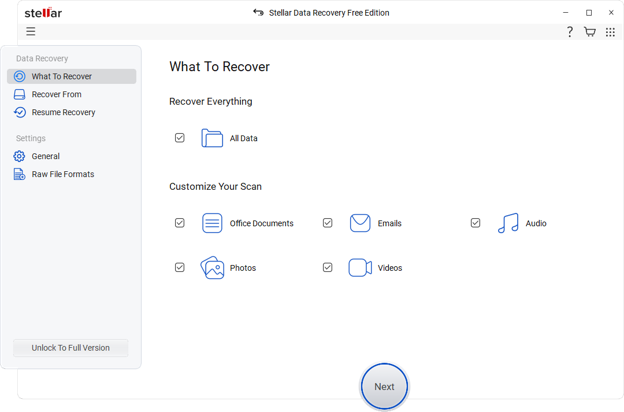
- Select what you lost. Choose the file type — documents, photos, videos, emails, or “everything” if you’re not sure.
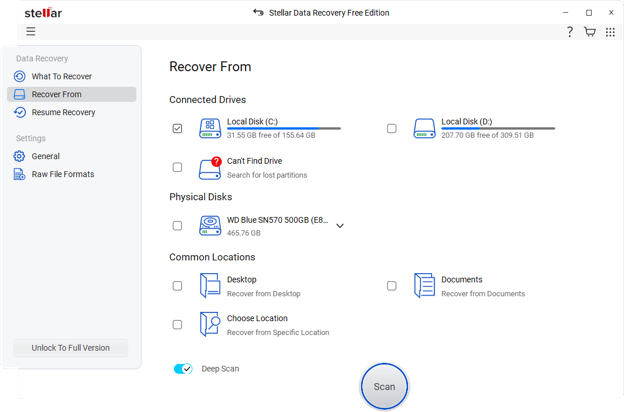
- Pick the location. Select the drive, folder, or USB device where the files used to be.
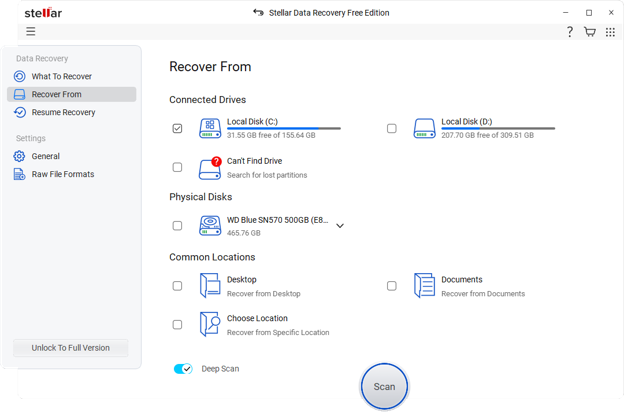
- Run a scan. The free version scans your selected location and shows you a preview of recoverable files before you commit to anything.
- Preview and recover. Check the files you need, and recover them to a different drive than the one you’re recovering from — never save recovered files back to the same location.
A few honest notes for students:
- Size limits. The free version has a recovery size limit, so it works best for a handful of important files rather than an entire lost drive.
- Act quickly. Recovery odds are highest when you act quickly and stop using the affected drive right away.
- Physical damage. It won’t help with physically damaged drives (unusual noises, drive not detected) — those need professional data recovery services.
Building a Habit, Not Just a Fix
Recovery tools like Stellar Data Recovery Free are a great safety net, but they work best as backup, not as your main strategy. Students who lose the least work usually are not running the fanciest data recovery. They just back things up out of habit, without thinking about it.
A simple rule to carry through your student years: if losing it would upset you, keep it in at least two places. Get into that habit early, and a crashed laptop becomes a minor annoyance instead of a crisis.