Digital Accessibility Settings Every Parent Should Ensure Their Child Has Turned On
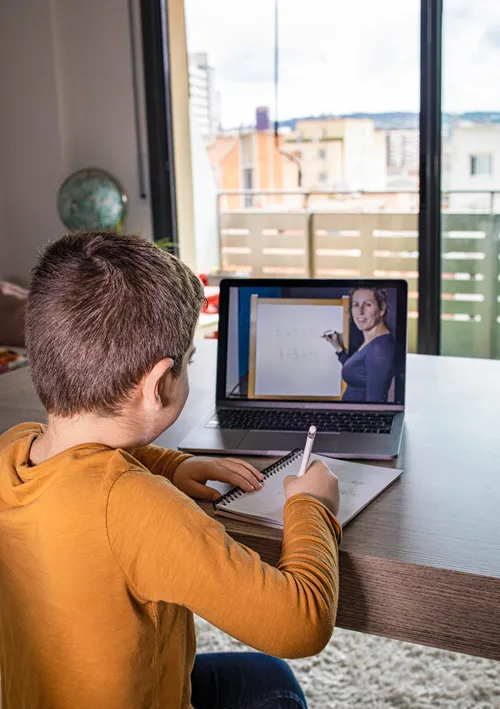
A few accessibility settings can make everyday digital tasks easier to hear, read, watch and follow. You can switch on many of them in minutes across a phone, tablet, computer or favorite app. They give your child useful support without changing how they use their device at home or for schoolwork every day.
These settings work across different types of digital content, from school assignments to online lessons and videos. Small adjustments to text, audio, movement and visual display settings can help your child use their devices with greater ease and independence.
Text-to-Speech
Research on text-to-speech for students with learning disabilities found benefits including improved reading speed, fluency, content retention, self-efficacy and independent learning. For your child, text-to-speech provides another way to access written information when a long passage feels difficult or unfamiliar words slow them down.
iPhone and iPad users can open Settings, select Accessibility and choose Spoken Content to turn on Speak Selection or Speak Screen. On Android devices, open Settings, select Accessibility and look for “Select to Speak” or an equivalent option. Adjust the speaking rate and language settings to fit your needs.
Computers also include spoken-content options. On Windows, open Settings, select Accessibility and choose Narrator. Mac users can find the relevant controls by opening System Settings, selecting Accessibility and choosing Read and Speak. Show your child how to activate the feature when they want to use it.
Closed Captioning
Captions give your child a written version of spoken dialogue, making videos, lessons and other audio-based content easier to follow. They become particularly useful when audio is unclear, background noise interferes or speakers talk quickly.
You can manage captions through both device settings and individual apps. On Android, open Settings, select Accessibility and look for Caption preferences. iPhone and iPad users can check their accessibility and caption settings. Video and streaming apps may also provide separate caption controls.
In YouTube, select Subtitles/CC in the video player and choose the available language. Other streaming services usually place captions under Accessibility, Subtitles or Captions.
Reduced Motion
Studies show that about 1 in 31 children has autism spectrum disorder, making digital accessibility especially important. For autistic kids, certain visual effects, such as animated transitions and moving backgrounds, may make screens harder for them to process. Reduced motion limits unnecessary animation, giving your child a calmer visual experience.
On an iPhone or iPad, open Settings, select Accessibility and choose Motion. From there, turn on Reduce Motion and check the options for limiting automatically playing animated content. Android devices may offer Remove animations or a similar setting under Settings and Accessibility.
Windows users can open Settings, select Accessibility and choose Visual effects to turn off animation effects. On Mac, open System Settings, select Accessibility, choose Display and enable Reduce motion.
Color Contrast
Stronger contrast between text, backgrounds, icons and controls makes important information easier to distinguish. It matters when your child needs to navigate menus or work with small text on a bright or visually busy screen.
Start with the device’s Accessibility settings. iPhone and iPad users can open Settings, select Accessibility, choose Display and Text Size and turn on Increase Contrast. Android menus vary, but sections with Display Size and Text, or with Color and Motion, may include high-contrast text or similar controls.
On Windows, open Settings, select Accessibility and choose Contrast themes. Mac users can open System Settings, choose Accessibility, select Display and turn on Increase contrast. Some apps provide their own display controls, giving your child additional flexibility when device-level settings do not provide enough contrast. Look under Accessibility, Display, Appearance or Settings for options that change text, backgrounds or interface elements.
Beyond visual readability, screen comfort also matters, especially when your child uses a device in the evening. Blue light can reduce melatonin production, which helps induce sleep. Limiting blue-light exposure may support a more comfortable transition toward bedtime.
Most phones, tablets and computers include a Night Light, Night Shift, Eye Comfort or similar feature. Open Settings and search for it, then set an evening schedule and adjust the screen’s warmth.
Screen Magnification
A study on accessibility tool usage found that students activated Magnifier, Highlighter and Line Guide more frequently than other tools. Students with visual impairments also used Magnifier more often, highlighting its relevance as an essential visual accessibility feature.
Screen magnification enlarges text, images, buttons and other interface elements when they appear too small to see comfortably. It provides a quick way to enlarge specific content, which can help with small text, detailed diagrams, maps or interface controls.
Your child’s phone or tablet can provide quick access to enlarged content. On iPhone and iPad, open Settings, select Accessibility, then choose Zoom and adjust the zoom level and region. Android users can find the feature by opening Settings, selecting Accessibility, choosing Magnification and selecting the available shortcut.
Windows includes a built-in Magnifier under Settings and Accessibility. Adjust the zoom level and teach your child to use the keyboard shortcut for quick access. Just press the Windows key and the plus sign key together to activate it.
Keep Accessibility Settings Within Reach
Accessibility tools work best when your child knows they are available and feels comfortable using them. Check the settings together, test them with everyday schoolwork and entertainment and adjust individual controls to make reading, listening and following digital tasks easier.
 Tessa Dodson is the Senior Writer at Classrooms.com and a former career coach dedicated to supporting teachers and students with practical and accessible educational resources.
When she’s not writing, you can find her diving into research or catching up with her latest read.