Category: Safety | Internet Security

What to do when your Social Media Account is Hacked

social media hacked

Cases of social media accounts being hacked has been on the rise in the recent past. You will know that your social media account has been hacked if you find activities that you didn’t initiate in your account. These could be posts, private messages, following or unfollowing people and sent friend requests.

You could also get notifications of changes to your profile or password. Depending on how much private information you have shared on your accounts, you risk your identity being stolen, or the hackers getting access to your financial accounts. If you notice such malicious activities, here is what you should do.

1. Scan your device

One way hackers could have gotten their hands on your password in order to hack your social media is by injecting malware to your device. That is why the first thing you should do is to run a full virus scan on your computer. If you find any malware, make sure you remove it. Restart and rescan your computer to be sure that it is safe. This is the only way to ensure that hackers do not have access to your device any more.

2. Enhance the security of your account

After cleaning your computer, change the password to the compromised account. If you have used the username and password on other accounts, be sure to change there too. The new strong password should not be anywhere near the old one. Make it stronger by including lower case letters, capital letters, numbers and symbols. Enhance the security of the accounts by enabling the 2-Step Verification. This will ensure that you receive a unique code to your phone whenever there is a change to your accounts settings. This locks out suspicious people from your account since they can’t access the special code sent to your phone.

3. Connect through a VPN

Another way social media hackers get your information is by spying on your activity over the internet when you connect through a public Wi-Fi. You should close up this loophole by installing a VPN in your device. Ensure that you use it to connect to the internet whenever you are browsing.

So, what is VPN? This is a virtual private network that works as a safe tunnel between your device and the sites you visit. This means that your browsing history is kept private and third parties can’t spy on it, limiting chances of hackers getting your information.

4. Notify your family and friends

Your family and friends might notice the messages that they received weren’t from you. However, you shouldn’t assume this; ensure you inform them that your social media was hacked so they stay wary of clicking on suspicious emails. There are cases where hackers ask money from your contacts, warning them will ensure that they don’t send their hard-earned cash to criminals. Besides warning them, go ahead and pull down any posts that were sent by the hackers. Delete the suspicious messages and report them to the compromised social media site. If there are games or third-party apps downloaded to your account, ensure that you delete them too, including any other that you do not use.

5. Check the settings to your email account

Hackers could have changed your email settings in order to gain control of the email activities. Ensure that you check these settings and change them accordingly. Change your signature and turn off auto-responder if they have activated it. As a preventive measure, always make sure to lock your computer while you are away from your desk. In that way, having a password-protected laptop will ensure that even if you are away from your computer, other people will not be able to access your data.  

6. Update the apps on your devices

Whenever apps and software developers release an update, there are enhanced security features that usually come with the update. That is why you should ensure that the apps in your devices are updated to the latest versions. There could be a notification feature whenever someone tries to log into your account from an unfamiliar location that you could miss if your app is not updated. Take advantage of enhanced security fixes to ensure that you are notified of malicious attempts to your accounts. Be sure to set your devices to auto-update so that apps are updated automatically in case you forget to update them.

Social Media Hacked! Conclusion

Do not panic if your social media is hacked as this happens to a lot of people. However, to limit the amount of information that hackers can steal from you, avoid posting your private information in your social media accounts. Too much information about you gives the hackers an easy time guessing your security question. If you notice any suspicious link or message, do not click on them, instead report them to the site so that they can stop the spread. Finally, educate yourself and your family about the importance of cybersecurity. From adults to kids, if someone is able to manage a social media a account they are also able to protect it.

Share This Article

What is Internet Privacy and How to Protect Yourself

What Is Internet Privacy

We share our details whenever using the internet without knowing it: websites track our geolocation, credit card or phone numbers, search, and purchase histories. Imagine what would happen if frauds will get such data! We will tell you why you must disable third party cookies or install reliable antivirus.

Most of all social connections take place on the Internet. We chat with friends, publish photos, or look for new sneakers. So if it matters for you that your correspondence and private files don’t leak into the public domain, then you should think about privacy issues.

What’s so special about Internet privacy?

Privacy on the Internet reflects in which way the site or company gathers and stores our data, and how they transfer or sell it. Based on received data, they form a broad customer base, that includes details such as telephone number, home address, or even clothing preferences.

Why we should care about such things as privacy on the Internet? Data leakages may result in stealing money from our credit card, appearing of annoying ads that are based on our purchase history, and receiving tons of spam emails.

Here’s some advice on how you may protect your privacy. They’re really simple, so both children and adults will manage to use them.

You can secure your details by such means:

1. Disable tracking cookies

If you want to prevent websites from monitoring your activity, you need to block third party cookies. It will help you deal with annoying ads, formed by your search history, and prevent your confidential data leakages. Here’s a guide that explains how easily block cookies in any browser.

2. Use a VPN

Another way to protect your info is to download and turn on a VPN. The major benefit of this method is that your data remains encrypted. Even your ISP won’t be able to find out which pages you’ve visited. A VPN allows you to visit blocked sites and bypass filters on work or school computers. We suggest taking a look on top free VPNs.

3. Don’t share your private details with suspicious websites

 If you find yourself on a suspicious site that asks you to enter private data, credit card numbers, or other intimate details, be extremely careful! These websites preserve data, create huge databases, and sell them to advertising companies. Therefore, we recommend you think twice whether a coupon for a free burger or participation in suspicious sweepstakes is worth intimate information leakage.

4. Turn on the private browsing mode

If you turn on the private browsing mode, you prohibit websites to gather and preserve your actions and data. On the contrary, this method won’t give full protection. ISP, smart tracking, and websites will still see your private data. This guide explains how to turn on private browsing mode.

 5. Set up a verified antivirus

Antivirus is a great helpmate when we talk about data security. Top antiviruses suggest such services as web protection, antispam, online payment’s security, and parental control. Scammers can steal people’s intimate files to extort money in exchange for deleting stolen data. However, if you have installed antivirus, no one will get your sensitive files, correspondence, and photos. Here you can find a list of the top reliable antivirus programs.

If you are concerned about the security of your private details, you can avoid scammers, stealing money from credit cards, or annoying spam. With our tips, you will easily maintain confidentiality at the right level. Just remember to be extremely cautious during an Internet session, and your data will be safe.  

9 Proven Ways To Enhance Your Email Privacy!

Share This Article

How to Delete Search Bar History

how to delete search bar history

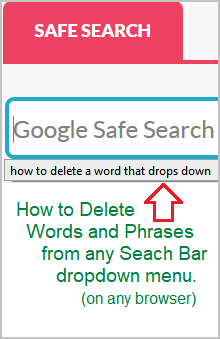
So you searched for a word or phrase and noticed it appears in the drop down history every time you go to the search bar to search for a new term. Would you like to learn how to delete all those words and phrases anytime you wish? The method to delete search bar history is different for every browser.

Here, we’ll review the various steps needed no matter what browser you are using to conduct your Google searches. Often parents contact us after testing our kids search engine for certain words. They want to ensure our Google enhanced search bar works to protect kids. They are happy when inappropriate search terms are blocked, but now those same words and phrases show up when clicking the search bar.

Clearing Google Search

This issue is not something only related to our website. It’s what happens on any search engine bar in any browser. You may have noticed that your email address will show up in certain forms on your computer as well. Well, there are ways to remove any dropdown term you wish showing up on any form, including our safe search resources.

The solution is to finding the proper instructions to delete your recent searches depends on your web browser. It’s not as simple as just clearing the history because these terms showing up are related to forms on your operating system.

Now for the good news! Below are the steps you need to take to remove form history in Chrome, Microsoft Edge and Firefox browsers.

How to Delete Search Bar history on Chrome

When the drop-down list of suggestions appear, you can highlight an entry by pressing the down arrow key. Then press “Shift-Delete” to remove the highlighted entry from the list. This is the simple way to only remove specific words or phrases.

To do a more extensive removal of all terms you can do so by going to your Chrome browser history, which will provide various option related to all types of history in Chrome.

How to Remove Search History in Microsoft Edge

To delete search bar history from Edge press Ctrl-H on your computer. Then click “Clear History” in the top right. A menu will open to reveal a number of options. If you only wish to delete the search bar history, only select the Autofill Data box. This will remove all words and phrases that were entered.

In Microsoft Edge you can also select to always clear anything thing that is checked off when the browser is closed. The ON button for this is located below the menu and applies to all boxes that a checked off.

Deleting Search Bar History in Firefox

The Firefox browser provides the easiest way to delete searches from any form or a search engine such as ours. Simply click on the search bar and when the word appears click it and hold it, but don’t let go. Then click the delete key. This will allow you to delete only specific searches in the dropdown.

To conduct a blanket delete of history in Firefox, look for the menu links in the top right corner of the browser. Select Tools => Options => Privacy and Security. Then scroll down and click Clear History. To delete the history of searches made, you will need to select Form and Search History. Here you decide whether to check or uncheck other items to may or may not want deleted. Firefox also allows you to delete Everything => or the Last Hour => last Two Hours => last Four hours => or Today only. Firefox has the most options when deleting various history variables.

Having Trouble Deleting Searches?

At Safe Search Kids, we understand that parents and teachers in schools are looking for filtered search engines they can trust to block content that is harmful to kids. You may enter the worst of the worst terms to ensure nothing bad shows up. So if you are having trouble with these instructions, please feel free to contact us for further clarification.

Short of installing parental control apps and taking steps to turn on safe search, Safe Search Kids is a good first step towards protecting kids online. So thanks for testing us out. We hope our search engine can be of use. Our Google enhanced search engine provides safe search of the web, safe images, kids Wikipedia and safe videos for use in your home and in the classroom.

This article not to be confused with the issue removing personal information about an individual from Google itself, whether they be a parent or child.  There are specific steps that need need to be taken using the Google Removal Request Tool.

Reading to Learn More:

Share This Article

How To Keep Your Kids From Malware

Keeping Kids from Malware

Most parents can easily come up with a list of potentially harmful elements on the Internet that their kids could be exposed to. But as long as that list gets, most will not even think about malware. Precautions to block certain content from causing lasting damage in young minds includes making sure malicious software (malware) does not invade our child’s privacy.

Malware can secretly infect any computer through infected websites, bad software, music and movie file sharing sites and even seemingly innocent online video games. It can expose kids to harmful materiel and at the very least reek havoc on computer. And like any type of virus, it can spread to other computers.

In this article, we’ve collated some of the best ways to take measures regarding Internet security and privacy in order to keep your children’s browsing and gaming safe. Most of these precautionary measures include having an open dialogue with kids about the unseen dangers of malware. Additionally, software solutions a necessary.

Get an Anti-Malware Program

An anti-malware program will save you from future headaches. It protects your browsing and gaming from unwanted viruses and malware; an effective anti-malware program will keep the Trojan virus away. Trojan viruses are a class of code or app that seems to be innocuous when downloaded, but once it’s part of your computer system it goes to work to cause mayhem.

Malware protection blankets your computer against most threats, including Trojan horses which even top of the line antivirus systems do not have. It does it’s best to block “suspect” programs, as well as conducts daily scans to subsequently removes threats that are attempting to change the way your computer behaves.

Google “Malwabytes free download” so do a free scan of your computer.  If data and privacy is compromised due to a scammer, it can also block a brute force attack.  

Setup Digital Boundary rules

This is where effective communication comes through. Setting up digital boundary rules with your children is fundamental in making them understand that while the Internet is a great place to obtain information, play games, and communicate with their friends, it can also be a dangerous place for someone vulnerable.

Talk to them about rules that you’ve decided upon, or better yet, allow them to participate in the decision-making process. For example, ask them what their stance on no Internet or gadgets after a certain time on weekdays. If you prefer they go to bed before 10:30 PM, it’s wise to set up no Internet by 9 PM or thirty minutes earlier. It’s also a great decision to tell your kids what sites they can or can not access. If they ask, answer them honestly.

Create a Safe Space for Kids via Parental Controls

Teaching kids to make good decisions about online use can only go so far. Any device you have in your home should have parental controls installed. This includes smartphones, laptops, iPads and of course, desk top computers and laptops. Once installed, parental controls can be customized to automatically block sites according to the age of your child. You can also monitor what your kids are doing online.

Effective parental control will also allow you to set usage restrictions according to the time of day. In addition to blocking websites, monitoring social media and filtering content, it can also track location. You may decide to set up rules with your kids to adhere to without setting up blocking features. Leave up to them so make the right decision, but you’ll know if they went online after hours for example, thanks to monitoring. This will help them build self control skills.

Always Communicate with your Kids Regarding their Internet Concerns

Even when you already have set up everything and it’s all going very well and smoothly, encourage your kids to express concerns they may have about their Internet use. Re-enforce why staying away from harmful content is for their own benefit. Slowly give them responsibility to “do the right thing” within the safe confines of your parental control settings.

You can’t protect your children from mature and adult content forever, as well as keeping kids safe from inappropriate YouTube videos. That’s why keeping the lines of communication open is essential to nurture a strong relationship of trust between you and your child. When kids feel listened too, they feel less of a need to rebel from the rules.

Takeaway

Parental supervision is only the start. No parent should feel inadequate for not being able to monitor their child’s activist online all the time. Most computer systems do a good job of preventing virus infections. But malware is much more deviant. It is not uncommon to install a anti-malware program for malware protection, even from innocent website, software programs or video games. The same goes for parental control software which blocks access to the worst parts of the web.

Share This Article