Will Your Child’s Search Settings Follow Them Off Home Wi-Fi?

Families often set up safer search settings at home and then wonder what happens when a child uses a tablet at school, a friend’s house, or on mobile data. The honest answer is not one simple yes or no. A setting can come from an account, a device, a school, or the network itself.

Each source has a different reach. Understanding which one is in control is more useful than assuming that every setting follows a child everywhere or that one connection change explains every result.

Start with the specific tool. Google’s SafeSearch guidance explains that SafeSearch applies to Google Search. It does not control other search engines or the rest of the web. It aims to identify and filter inappropriate content, but no filter is a replacement for an adult conversation, age-appropriate rules, or attention to a child’s needs. Naming that scope matters. When a family expects a search filter to cover every app and site, a normal limitation can look like a mysterious failure.

Ask where the setting comes from

An account-based setting is tied to the account used when searching. A supervised child account can have settings managed through a parent’s tools. A device may also be managed by a school or organization. Network-based controls can apply to devices on that particular Wi‑Fi network. In Google Search, parents, schools, device administrators, and network administrators can lock SafeSearch in some contexts. The same child can therefore see different behavior depending on which account, device, and network are involved.

That is why the first check should be quiet and ordinary. Ask: is the child signed into the expected account? Is this the family device or a school-managed device? Are they on home Wi‑Fi, school Wi‑Fi, mobile data, or a guest network? You do not need to test with inappropriate searches. The settings page and the account’s management information can show whether a setting is on and, in some cases, who manages it. Use those official controls rather than experimenting with risky terms.

For a parent, the useful result of that check is a simple picture of responsibility. If the account setting is managed by family tools, review it with the family account. If the device belongs to school, ask the school before changing anything. If the setting only appears on home Wi‑Fi, treat it as a home-network question. This small distinction prevents a child from receiving mixed messages from adults who each assume someone else controls the same setting.

A little girl sits at the kitchen table in front of a laptop as her mom helps her.

It is also worth checking ordinary details before worrying about the filter itself. A child may be signed out after an update, using a different browser profile, or moving between a personal and school account. Those situations can change what the browser shows without anyone deliberately changing a safety rule. Do not blame the child for a mismatch before reviewing the context. A calm question about the device and account usually provides more useful information than a sudden restriction or accusation.

Location changes can change the context

A laptop carried from home to school is still the same laptop, but its network context has changed. A phone moving from Wi‑Fi to mobile data has changed context too. That does not mean protections have disappeared; it means the protection may be coming from a different layer. A school may manage a device or network in ways that do not apply at home. A parent-managed account can travel with the account, while a home router rule normally relates to devices using that network.

Do not turn this into a lesson in getting around controls. If a child sees a result that does not fit the family or school expectation, pause the activity and ask the parent, teacher, or administrator who manages that setting. That response keeps the adult responsible for the rules involved and avoids teaching a child to treat safety boundaries as puzzles. It also leaves room for a technical issue, a changed account, or a policy decision rather than assuming bad intent.

Keep connection tools in their proper place

A VPN app routes traffic through the connection it provides. It is not a parental-control system, a school-policy system, or a promise that every search setting will behave the same way on every network. X-VPN routes traffic and does not replace parental controls or school policy. That is a useful boundary to explain to older children: tools can have one job without being responsible for every part of online safety.

Likewise, a free VPN option is not evidence that a child’s account settings are compatible with every network or device. Do not use a connection tool to test whether controls can be bypassed. If a setting appears different, bring the device back to the expected account and follow the official support guidance for the family or school system. The aim is a predictable, supervised experience, not a technical contest.

Build a plan that children can understand

Children benefit from knowing the simple rule behind the settings: search filters are one layer, not the whole plan. A clear family conversation can cover what to do when a surprising result appears, how to ask for help, and why certain accounts or devices have different rules. Keep the instructions age appropriate. For a younger child, the rule may be “close it and tell me.” For an older child, it may include checking which account is signed in before assuming a setting is broken.

Parents can also make the setup easier to review. Keep recovery details for the supervised account current. Know which devices belong to school management. Review any major change to the home network with the same care you would give to a new device. None of these steps creates perfect control, but together they reduce confusion and make an adult easier to reach when it matters.

The best question is not “Will one setting follow everywhere?” It is “Which layer is meant to help in this situation?” Account, device, and network controls can support one another, but they do not all travel in the same way. Once a family understands that, an unexpected difference becomes a reason to check the right adult-managed setting, not a reason to panic or try to work around it.


Share This Article

5 Fundraising Ideas That Work for Expat Communities and Their Families Back Home

A family gathered around a laptop for a video call.

Expat communities often raise money for a charity in their new country or back home, and relatives in the UK are usually keen to be involved as well. Formats that work across distance are the easiest to run, whether guests join in person, by video call or by sponsoring someone who takes part on the day.

The best ideas keep the effort low for organisers and make it simple for people in different time zones to chip in, so here are some that have worked well.

1. Host a Quiz Night on Video Call

Set the quiz for a time that suits both countries, then let teams of relatives and friends log in from their own homes alongside the local community. One hospice’s first virtual quiz attracted teams from as far afield as Vietnam, so distance matters little once everyone has a screen. Charge a donation per team, share the joining link in advance and ask a friend with a good voice to host.

2. Hold a Matching Event in the UK

While the expat group runs its own event, relatives can host a second one in the UK on the same day and add the two totals together. Families expecting a larger guest list sometimes book marquee hire in London for a garden party, which keeps all the guests together on the lawn. Swap photos and running totals across the two events during the day so each group can see the other’s turnout.

3. Organise a Sponsored Walk

Because each walker covers the distance close to home, a sponsored walk suits a community spread across a wide area. Pick one weekend, agree a distance and let sponsors in both countries pledge a small amount per mile. A single online giving page makes it simple for relatives in either country to donate, and a group photo from each walk puts faces to the total. Short routes keep it open to children and older relatives.

4. Open Garden Days With Tea and Cake

One British-run group in France encourages members to open their gardens each year to raise money for children and young adults with serious illnesses or disabilities, with visitors exploring the grounds over refreshments. A terrace, village hall or community garden can work just as well for an expat group, and relatives back home can send family recipes to bake on the day, sponsor a seat or donate in someone’s name.

5. Publish a Community Recipe Book

Ask families on both sides to send in a favourite recipe with a few lines about who cooked it and when, then collect the entries into a printed booklet or a download. Relatives often hold the older family recipes, so the book ends up covering dishes the community hasn’t tasted in years, and each sale carries a story with it. Sell copies at the other events on this list as well as online, and put the charity’s name on the cover.

Agree on one charity before announcing anything, then set a single total that both countries are working towards and give each side a few clear jobs. A quiz or a walk is enough to test the interest, and a larger event can follow once the group has seen what it can raise.

Share This Article

Postsecondary Success in IEP Transition Planning

Woman speaking enthusiastically to someone off camera.

Every student with a disability deserves a transition plan built on more than guesswork. The quality of planning before graduation can shape whether a student finds meaningful work, continues their education, and builds an independent life.

In 2021, researchers conducted a review into which transition planning practices helped provide improved predictors of post-school success (Mazzotti et al, 2020). A similar review also identified which behaviors, skills, experiences, and expectations were linked closely to postsecondary success for IEP students with significant cognitive disabilities (McConnell et al., 2021).

9 Keys of Assessment Categories

Following from McConnell and colleagues, a second review included nine specific best practice assessment categories:

  • self-determination;
  • academics;
  • personal experiences;
  • self-care;
  • agency assistance;
  • social skills;
  • employment;
  • technology; and
  • school experiences.

To better understand the process, it’s important to take a closer look at how each category relates to IEP transition assessment planning.

Self-Determination

Students are much more successful when they fully understand their personal strengths and weaknesses. Moreover, being able to articulate their vision for post-secondary employment and independent living can help them take an active leadership role in achieving their goals.

Academics

Aligning an IEP student’s coursework with their post-secondary goals enables them to get more out of their academic experience.

Personal Experiences

Student-led meetings and vocational assessments help shift them from choosing a generic career path. By focusing on personal experiences, IEP students are much more likely to decide on their long-term goals.

Self-Care

Self-care skills assist IEP students with daily living, health and wellness, medication management, personal hygiene, and self-advocacy—factors that are not shown on an academic transcript but have an equal weight of importance.

Agency Assistance

Coordinated agency assistance can be another vital tool, and one that is typically mandated. Schools are required to obtain parental consent that invite relevant adult agencies to IEP meetings.

Social Skills

Preparing IEP students for community participation, workplace communication, self-advocacy, and independent living are core tenants of transition planning. Pairing students with the Social Responsiveness Scale,Third Edition (SRS®-3) assessment tool can help give an evaluation team standardized data on this specific domain.

Employment

For a successful transition service to help build a student’s goal towards employment, it requires the following coordinated activities:

  • job coaching;
  • soft skills training;
  • internships and job shadowing; and
  • travel training.

Technology

Assistive technology can help maintain or even increase an IEP student’s future independence. As technology plays a significant role in employment and career exploration, using it properly requires skill maintenance and local support.

School Experiences

One major aspect of transition planning is shifting away from the traditional classroom setting. Integrating hands-on activities can help IEP students find better employment and post-secondary education opportunities. Transition planning also involves improved community participation and independent living.

Two women seated at a round table engaged in conversation.

Transition Planning and IEP Students

Ultimately, transition planning will look different from student to student, and that variability can bring advantages for each individual. By engaging a student’s mind and interests, an evaluator can help build on their skills with the program, leading to greater success in future employment and living opportunities.

Research and Resources

Mazzotti, V. L., Rowe, D. A., Kwiatek, S., Voggt, A., Chang, W.-H., Fowler, C. H., Poppen, M., Sinclair, J., & Test, D. W. (2020). Secondary Transition Predictors of Postschool Success: An Update to the Research Base. Career Development and Transition for Exceptional Individuals, 44(1), 47–64. https://doi.org/10.1177/2165143420959793

McConnell, A., Sanford, C., Martin, J., Cameto, R., & Hodge, L. (2021). Skills, Behaviors, Expectations, and Experiences Associated with Improved Postsecondary Outcomes for Students with Significant Cognitive Disabilities. Research and Practice for Persons with Severe Disabilities, 46(4), 240–258. https://doi.org/10.1177/15407969211053810

Category:  Educaton

Share This Article

Best Alternatives to VPNs for Everyday Privacy

The word Privacy superimposed over symbols of digital security.

VPNs are a popular way to protect your privacy online, but they are not always practical. They can slow your connection, use more battery, and require a separate app on each device. For everyday privacy needs like blocking ads, trackers, and malicious sites, a full VPN might be more than you need.

DNS-based tools offer a lighter alternative. They can filter unwanted content, block threats before they load, and provide some VPN-like privacy features without a full VPN connection.

Let’s look at the 4 best alternatives to VPNs and review how each can help with everyday privacy and security.

Reviewing Top 4 Alternatives to VPNs

Tools Features Traffic Redirection Best for
1. Control D ●      Customizable network routing

●      Reduced latency

●      Granular traffic control

●      100+ global locations

●      IP masking without VPN

●      Service-level redirection

●      Security layer

Yes, at the DNS layer. Works on any device that can set a DNS server. Scoped per domain, service, or category ●      Masking your traffic’s origin

●      Redirecting specific services or domains through global proxy locations

●      Filtering out malware and unwanted content

2. Cloudflare ●      Stronger security model

●      Simple IT management

●      Smooth user experience

●      Broad Zero Trust coverage

●      Fast remote access

●      Unified and consistent SaaS-style login

Yes, but as a full forward proxy for managed devices. Requires the WARP client and IT-side configuration ●      Eliminating the riskiest users and apps

●      Adopting a Zero Trust access model

3. RethinkDNS ●      Ad and tracker blocking

●      Full control of DNS translation

●      Global servers

●      Proxy network add-on with the Rethink Proxy Network

Yes, via the separate Rethink Proxy Network subscription. Requires the Android app, scoped per app ●      Establishing a firewall-level control over what each app can access

●      DNS-layer filtering and censorship bypassing

●      Adding proxies for VPN-style routing

4. AdGuard DNS ●      Encrypted DNS traffic
Global server locations●      VPN-profile mode on mobile●      Device-level visibility
No. You choose which AdGuard resolver answers your queries, but your web traffic isn’t rerouted ●      DNS-level traffic control

●      Ad and tracker blocking

1. Control D

Control D website Screen Shot

Control D is a DNS filtering service that uses threat intelligence to block malware and trackers on every operating system. Its real-time AI flags malicious and phishing domains before they ever reach a shared blocklist, which stops threats before they reach your devices.

One of Control D’s strong features is that you can set custom rules to block or allow specific domains, instead of accepting a fixed blocklist.

Along with filtering, its traffic redirection feature lets DNS queries be routed through proxy locations to mask a client’s source IP, offering a VPN-style IP masking without an actual VPN needed and making it one of the strongest alternatives to VPNs.

Features as a VPN Alternative:

  • IP masking without VPN: Traffic can be sent through transparent proxies to hide the client’s source IP, something a VPN usually does
  • Minimal speed impact: Routing through Control D’s optimized proxy locations adds privacy without the slowdown a full VPN tunnel usually brings
  • Granular traffic control: Different devices on your network can be routed through different proxy locations, giving granular control over how DNS queries flow.
  • 100+ global locations: Traffic can be sent through more than 100 distributed proxy locations so you can choose where your traffic appears to originate
  • Service-level redirection: Specific web apps or services can be redirected through Control D’s proxies with no need to identify individual domains
  • Security layer: Redirected traffic still passes through Control D’s filtering, so malware and tracker blocking stay in effect on redirected domains
  • Encrypted DNS everywhere: Full support for DoH, DoH3, DoT, and DoQ, plus plain DNS for devices that can’t do encrypted lookups

Why Control D?

Choose Control D if you need to mask your traffic’s origin, redirect specific services or domains through global proxy locations, and filter out malware and unwanted content, all without needing a separate VPN service.

2. Cloudflare

Cloudflare website Screen Shot

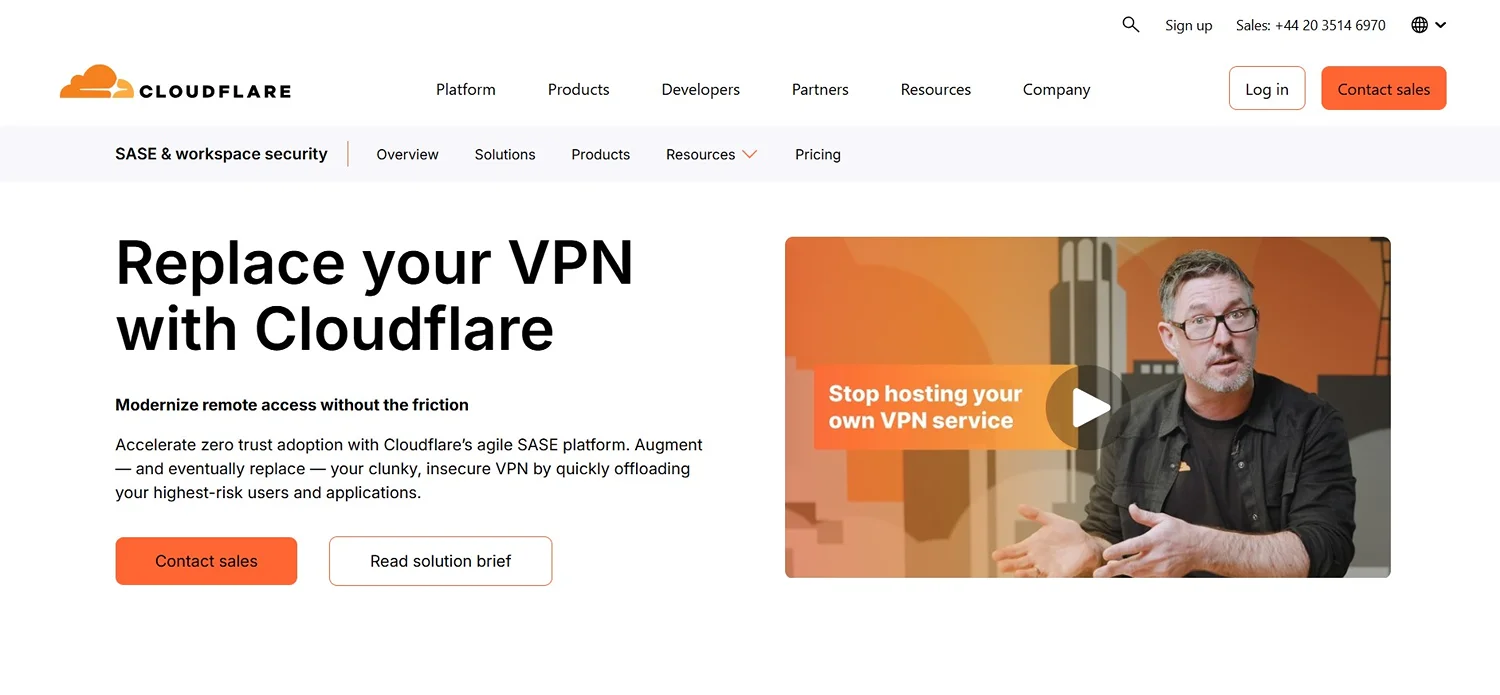
Cloudflare offers a Zero Trust Network Access (ZTNA) service built to replace traditional VPNs. Its agile SASE platform speeds up Zero Trust adoption by first offloading the riskiest users and apps from an insecure VPN, then fully replacing it.

Features as a VPN Alternative:

  • Stronger security model: Adopting Zero Trust cuts down the chance of expensive security breaches.
  • Simple IT management: A modernized access strategy to reduce IT tickets and speed up new employee onboarding
  • Smooth user experience: A large global network to access apps and other resources with low latency, removing the need for a VPN
  • Broad Zero Trust coverage: Going beyond apps and networks to infrastructure
  • Fast remote access
  • Unified and consistent SaaS-style login

 Why Cloudflare?

Choose Cloudflare if you’re replacing a corporate VPN rather than looking for personal privacy. Zero Trust Network Access is built for IT teams managing company access, so it’s a heavier lift than the other options here if you’re just protecting your own devices.

3. RethinkDNS

RethinkDNS website Screen Shot

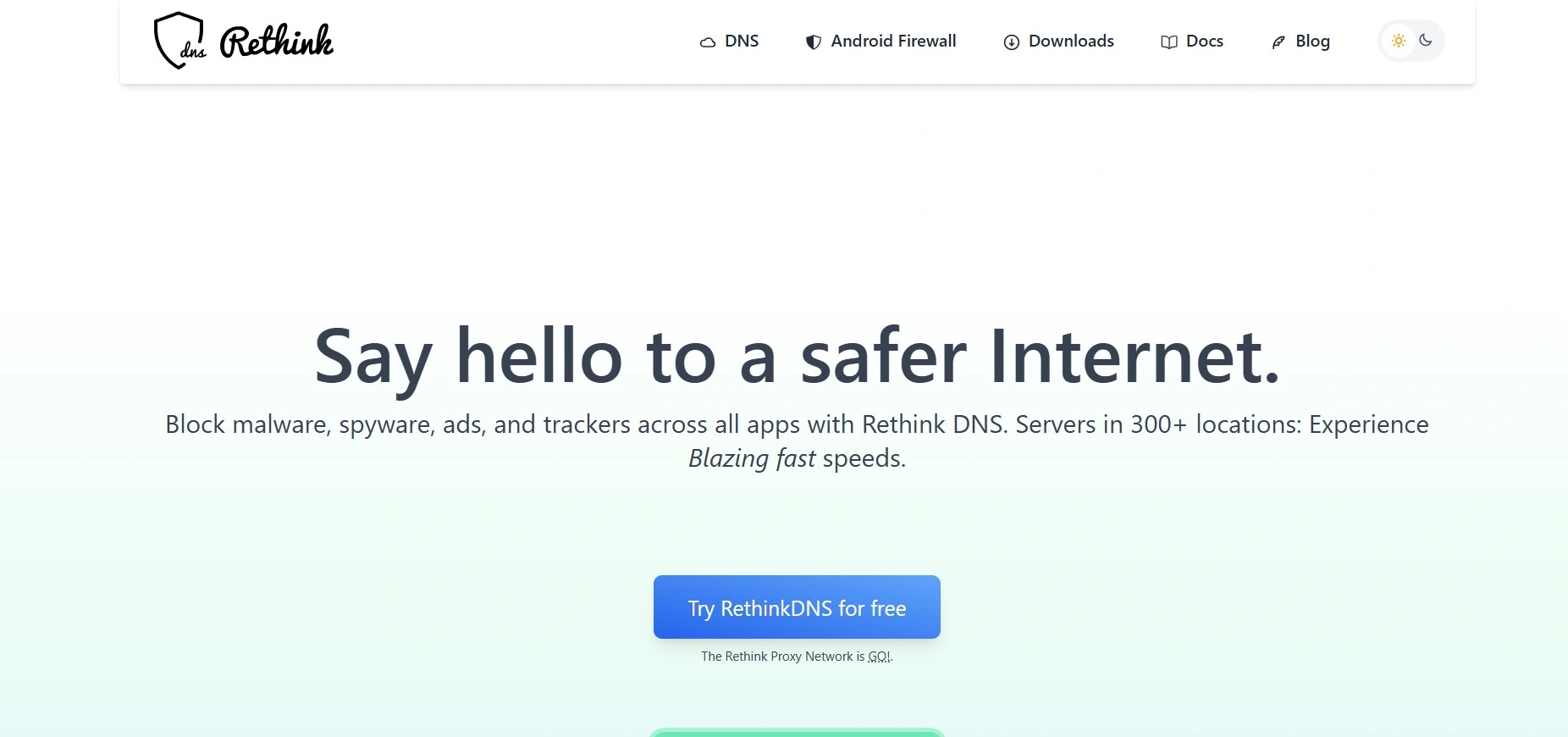
RethinkDNS is a private, fast DNS resolver for Android that blocks malware, spyware, ads, and trackers across every app, running from servers in 300 locations worldwide. It also includes a firewall to monitor and manage internet access and app activity.

Features as a VPN Alternative:

  • Ad and tracker blocking: Supports over 190 blocklists, some of which also power ad blockers like uBlock Origin.
  • Full control of DNS translation: Instead of the ISP handling the domain-to-IP lookup, users get full control over that step to stay protected against threats, ads, trackers, or other spyware.
  • Global servers: RethinkDNS’s servers are spread across more than 300 locations globally.
  • Proxy network add-on with the Rethink Proxy Network

Why RethinkDNS?

Choose RethinkDNS if you want firewall-level control over what each app can access, DNS-layer filtering, and censorship bypassing, as well as adding proxies for VPN-style routing.

4. AdGuard DNS

AdGuardDNS website Screen Shot

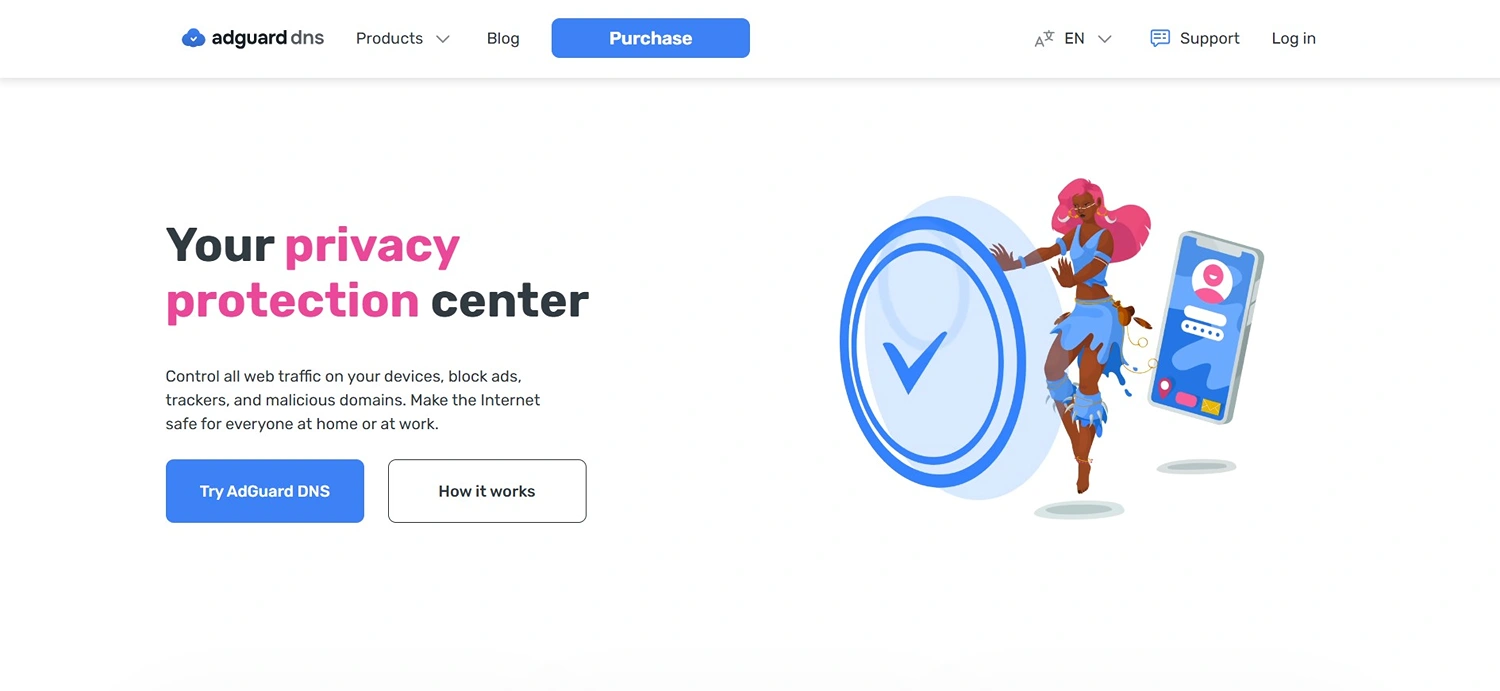
AdGuard DNS is a DNS service that blocks ads, trackers, and malicious domains while giving control over web traffic on every connected device, whether at home or at work. It also provides real-time statistics on DNS requests from all devices.

Features as a VPN Alternative:

  • Encrypted DNS traffic: Supports DoH, DoT, and DNS-over-QUIC to keep DNS requests encrypted
    Global server locations:
    Runs on more than 15 locations over 100 servers worldwide
  • VPN-profile mode on mobile: On Android and iOS, a VPN-based mode uses a VPN profile to route DNS requests to the chosen server.
  • Device-level visibility: A dashboard shows real-time stats on requests from each device, including what got blocked and when. 

Why AdGuard?

 Choose AdGuard if you want DNS-level traffic control, encrypted connections, and per-device visibility into what’s being blocked.

Note: AdGuard also offers a VPN service; however, AdGuard DNS is a lighter option, especially for those who don’t need a complete VPN. If you want your IP masked, that’s a separate product.

Why Choose DNS over VPN?

While you have a list of VPN alternatives, you might still wonder why some people choose DNS over VPN. Here are several reasons:

  • Simpler setup with no app or software install needed
  • Covers every device automatically
  • Built-in security and content filtering
  • Easier to manage and have full control over device and browsing activity and DNS requests.

Many DNS services cost less than a VPN, and several, including Control D, have free tiers for filtering. Traffic redirection sits on Control D’s paid personal plan at $6/month, still below many VPN subscriptions.

To Sum Up

Each of the above-mentioned tools follows a slightly different path, though all of them are focused on security and privacy.

Control D is the most flexible place to start. It’s the only DNS service here with traffic redirection built in rather than as an add-on, allowing you to mask your traffic’s origin and route it through global proxy locations without needing a separate app or subscription.

Share This Article